VIMG - Image Viewer with FZF (english)
A simple but powerful command-line image viewer that works in both TTY terminals and graphical environments, with integrated directory navigation using FZF.

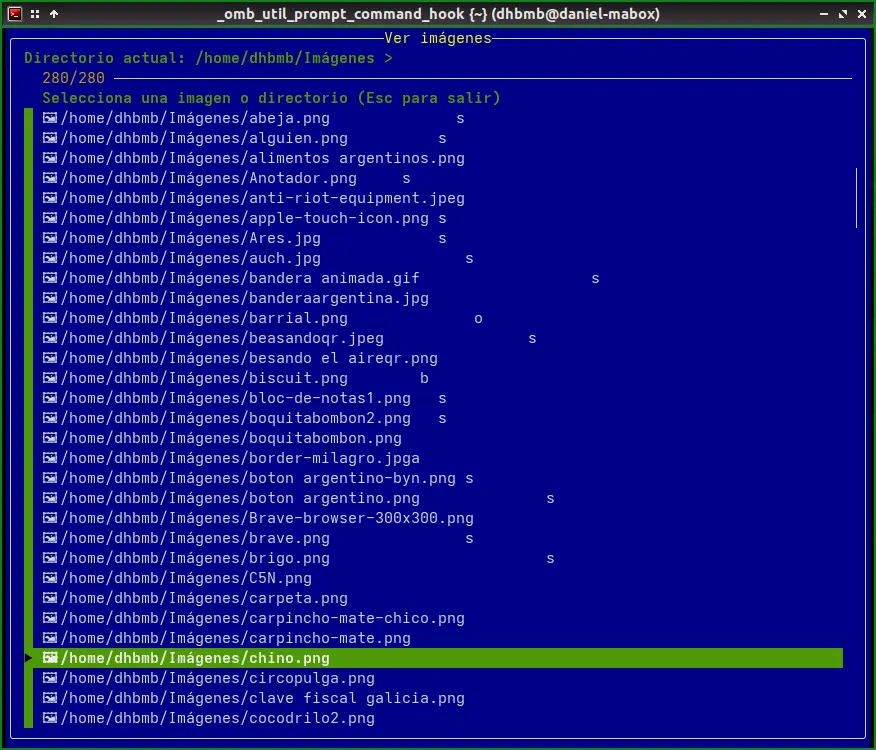
Features
- Dual mode: Works in graphical mode (with feh) and in TTY terminals (with fbi)
- Intuitive navigation: FZF-based interface for selecting images and navigating between directories
- Easy to use: No complex configuration, just run the script
- Environment auto-detection: Automatically determines if you're in a graphical or TTY environment
- Adaptable: Automatically adjusts images according to the terminal size in TTY mode
- Directory navigation: Allows you to explore the entire directory structure without exiting the viewer
Dependencies
To use VIMG you'll need to have installed:
- fzf: For the image selection interface and navigation
- feh: For viewing images in graphical environment (X11/Wayland)
- fbi: For viewing images in TTY (console mode)
- find: For finding images and directories (usually pre-installed)
Optional but recommended dependencies:
- ImageMagick: For image size detection (identify command)
Installing dependencies
Debian/Ubuntu/Linux Mint
# Install fzf (interactive selector)
sudo apt install fzf

# Install feh (image viewer for graphical environment)
sudo apt install feh

# Install fbida (contains fbi for viewing images in TTY)
sudo apt install fbida

# Install ImageMagick (for image size detection)
sudo apt install imagemagick

# findutils (usually already installed)
sudo apt install findutils

# All in a single command:
sudo apt install fzf feh fbida imagemagick findutils
Arch Linux/Manjaro/EndeavourOS
# Install fzf
sudo pacman -S fzf

# Install feh
sudo pacman -S feh

# Install fbida (contains fbi)
sudo pacman -S fbida

# Install ImageMagick
sudo pacman -S imagemagick

# findutils (usually already installed)
sudo pacman -S findutils

# All in a single command:
sudo pacman -S fzf feh fbida imagemagick findutils
Fedora/CentOS/RHEL
# Install fzf
sudo dnf install fzf

# Install feh
sudo dnf install feh

# Install fbida (contains fbi)
sudo dnf install fbida

# Install ImageMagick
sudo dnf install ImageMagick

# findutils (usually already installed)
sudo dnf install findutils

# All in a single command:
sudo dnf install fzf feh fbida ImageMagick findutils
openSUSE
# Install fzf
sudo zypper install fzf

# Install feh
sudo zypper install feh

# Install fbida (contains fbi)
sudo zypper install fbida

# Install ImageMagick
sudo zypper install ImageMagick

# findutils (usually already installed)
sudo zypper install findutils

# All in a single command:
sudo zypper install fzf feh fbida ImageMagick findutils
Gentoo
# Install fzf
sudo emerge --ask app-shells/fzf

# Install feh
sudo emerge --ask media-gfx/feh

# Install fbida (contains fbi)
sudo emerge --ask media-gfx/fbida

# Install ImageMagick
sudo emerge --ask media-gfx/imagemagick

# findutils (usually already installed)
sudo emerge --ask sys-apps/findutils
With specific package managers
With Homebrew (Linux/macOS):
brew install fzf feh imagemagick findutils
# Note: fbida is not available in Homebrew, you'll need to install it manually
With Snap (where available):
sudo snap install fzf
sudo snap install feh
# Note: not all packages are available as snaps
Installation
-
Download the
vimg.shscript:bash curl -o vimg.sh https://github.com/danielhb2/algunos_scripts/tree/main/vimg/vimg.sh -
Give it execution permissions:
bash chmod +x vimg.sh -
Optional: Make it globally available on your system:
bash
   sudo cp vimg.sh /usr/local/bin/vimg
Usage
Basic usage
./vimg.sh
Run the script without arguments to show all images in the current directory and then enter navigation mode with fzf.
Start with a specific directory
./vimg.sh /path/to/my/photos
Start with a specific image
./vimg.sh /path/to/my/photos/image.jpg
The viewer will start showing this image and then allow you to navigate between all the images in the directory.
Navigation
Once inside the viewer, you can:
- View images: Select any image (marked with 🖼️) to view it
- Navigate directories: Select any directory (marked with 📁) to enter it
- Go up one level: Select the "[UP DIRECTORY]" option to go to the parent directory
- Exit: Press
EscorCtrl+Cto exit the program
Controls during viewing
In graphical mode (feh)
- Next image:
Spaceor→orPgDown - Previous image:
Backspaceor←orPgUp - Zoom:
+to zoom in,-to zoom out - Full screen:
f - Exit:
qorEsc
Check feh documentation (man feh) for more options.
In TTY mode (fbi)
- Next image:
PgDown - Previous image:
PgUp - Zoom:
+to zoom in,-to zoom out,ato fit to screen - Move around the image: Use the arrow keys
- Exit:
qorEsc
Check fbi documentation (man fbi) for more options.
Customization
The script includes customization options for fzf that you can modify by editing the fzf_opts section at the beginning of the file. Some options you can customize:
- Colors
- Layout
- Border labels
- Pointer and marker symbols
Supported formats
The script supports the following image formats: - JPG/JPEG - PNG - GIF - WEBP - BMP
To add support for more formats, modify the pattern in the find_images() function.
Troubleshooting
The script shows "Error: XXX is not installed"
Make sure to install all the required dependencies as mentioned in the dependencies section.
Distorted images in TTY mode
If images appear distorted in TTY mode, it might be due to scaling options. The script tries to detect image sizes using identify (ImageMagick). If it's not installed, try installing it or modify the run_fbi() function to adjust fbi options.
Images don't display correctly in some terminals
Some terminals have limitations for displaying images. Make sure you're using a terminal compatible with fbi/feh.
Contributing
Contributions are welcome! Feel free to open issues or pull requests if you find bugs or have ideas for improvements.
License
This script is distributed under the MIT license.
Developed with ❤️ to facilitate image viewing in Linux environments.